> ## Documentation Index
> Fetch the complete documentation index at: https://docs.rubbrband.com/llms.txt
> Use this file to discover all available pages before exploring further.
# Text to Image Node
> Learn about Rubbrband's Text to Image Nodes
## Text to Image Flux Dev Node
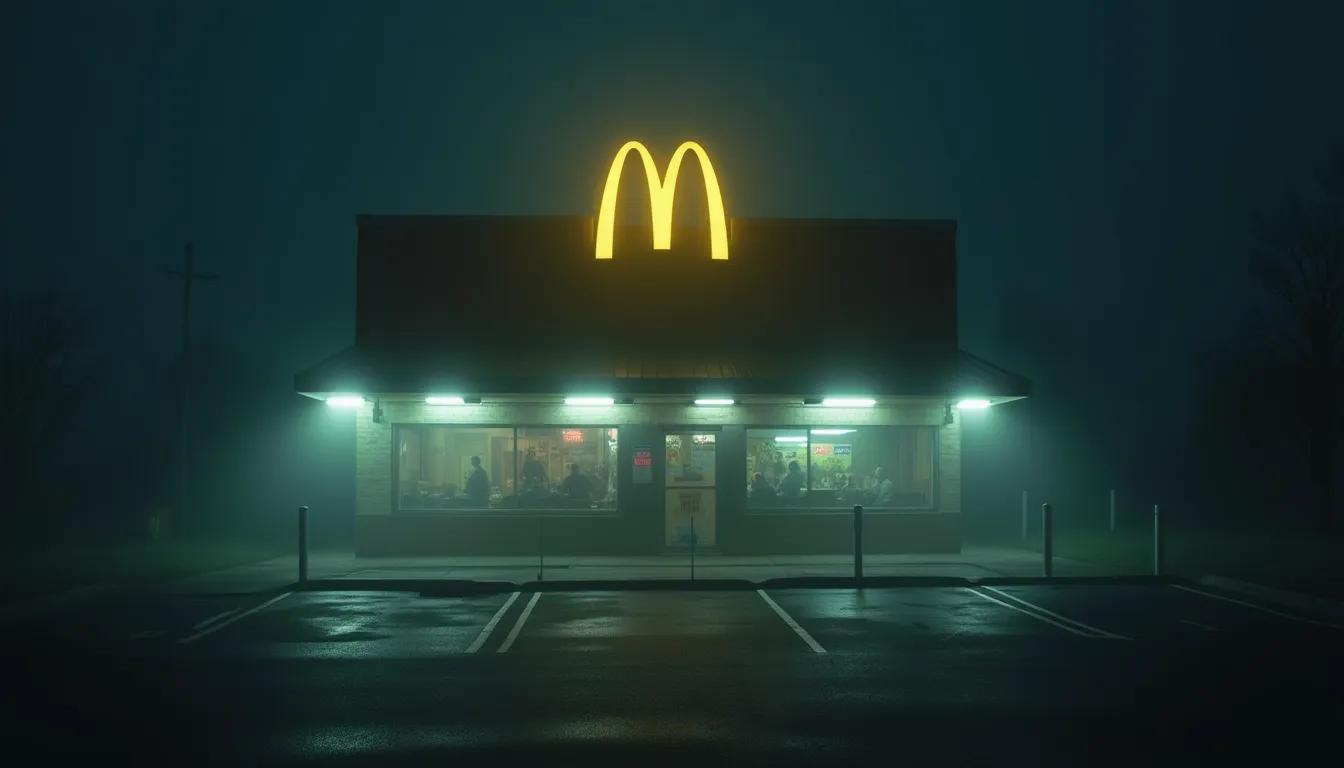
The text to image flux dev node uses flux dev technology to generate images from text.
**Inputs**
The prompt that describes the image to be generated.
**Settings**
The aspect ratio of the output image
Add up to 3 colors using the color palette to select.
Guidance is a scale from 2 to 5 that measures how much the output image should adhere to the prompt. Increasing guidance to values that are too high result in a lack of coherence -- the images follow the prompt, but they won't look quite right.
Attach Rubbrband Concept models that you have trained, so that you can use them in your flux dev workflows. You may only attach flux dev concept models (also called LORAs).
Increasing the number of steps increases the number of iterations the AI takes to generate your image. Increasing steps make generations take longer, but can sometimes lead to more coherent images.
A random number that will set the seed for the generation. Keeping the seed constant will result in the same outputs. -1 randomizes the seed.
**Outputs**
The variation output image
## Text to Image Flux Pro Node
The text to image flux pro node uses flux pro technology to generate images from text.

**Inputs**
The prompt that describes the image to be generated.
**Settings**
The aspect ratio of the output image
Add up to 3 colors using the color palette to select.
Switch on this setting to allow the AI to add details to your prompt to improve generations. This helps image quality, but can occasionally lead to worse prompt adherence.
Increasing the number of steps increases the number of iterations the AI takes to generate your image. Increasing steps make generations take longer, but can sometimes lead to more coherent images.
A random number that will set the seed for the generation. Keeping the seed constant will result in the same outputs. -1 randomizes the seed.
**Outputs**
The variation output image
## Text to Image Flux Pro Ultra Node
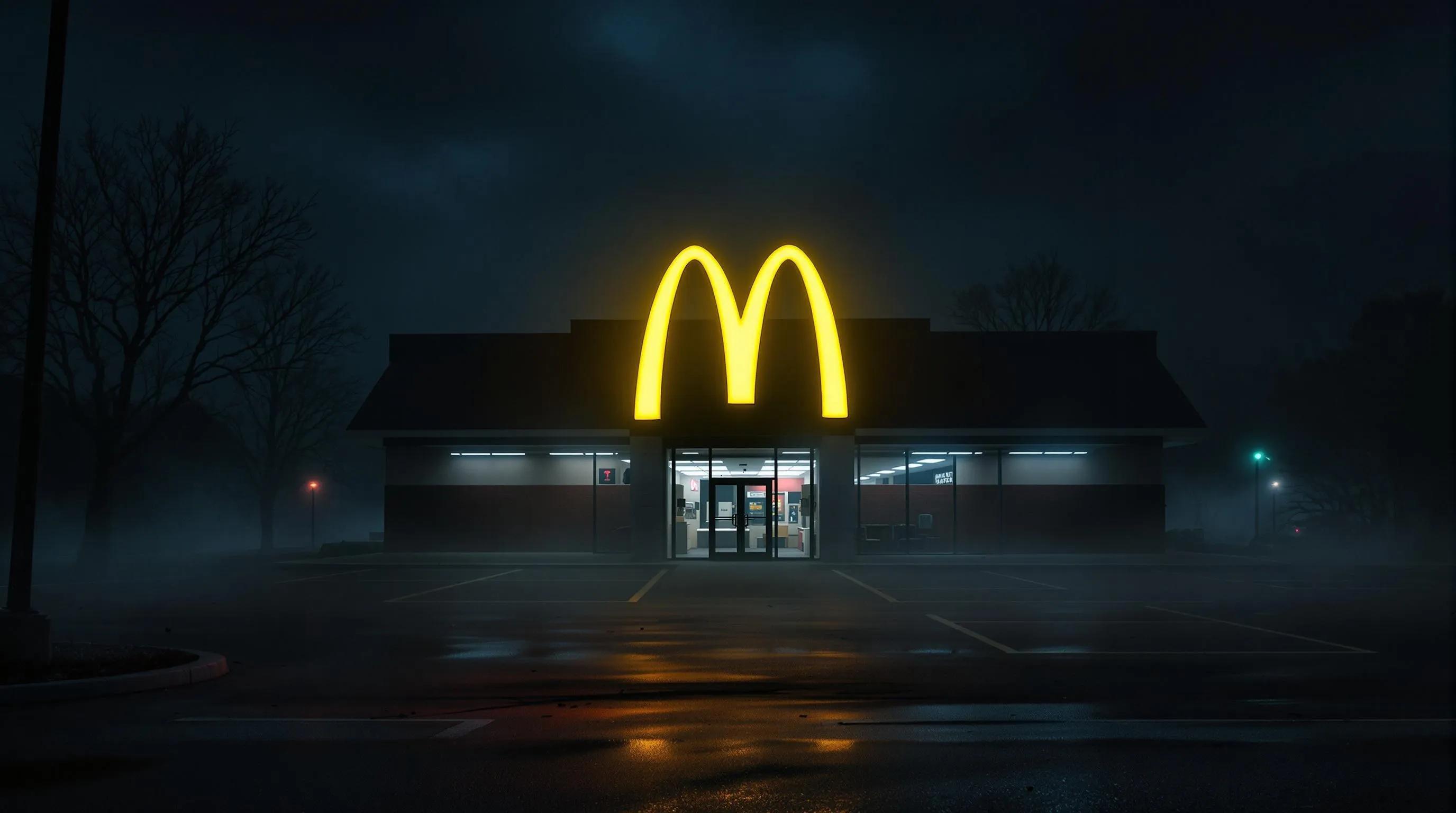
The text to image flux pro ultra node uses flux pro ultra technology to generate images from text.
**Inputs**
The prompt that describes the image to be generated.
**Settings**
The aspect ratio of the output image
Add up to 3 colors using the color palette to select.
Switch on this setting to allow the AI to add details to your prompt to improve generations. This helps image quality, but can occasionally lead to worse prompt adherence.
Switch on this setting to create more natural, realistic images.
Increasing the number of steps increases the number of iterations the AI takes to generate your image. Increasing steps make generations take longer, but can sometimes lead to more coherent images.
A random number that will set the seed for the generation. Keeping the seed constant will result in the same outputs. -1 randomizes the seed.
**Outputs**
The variation output image
## Text to Image Flux Schnell Node
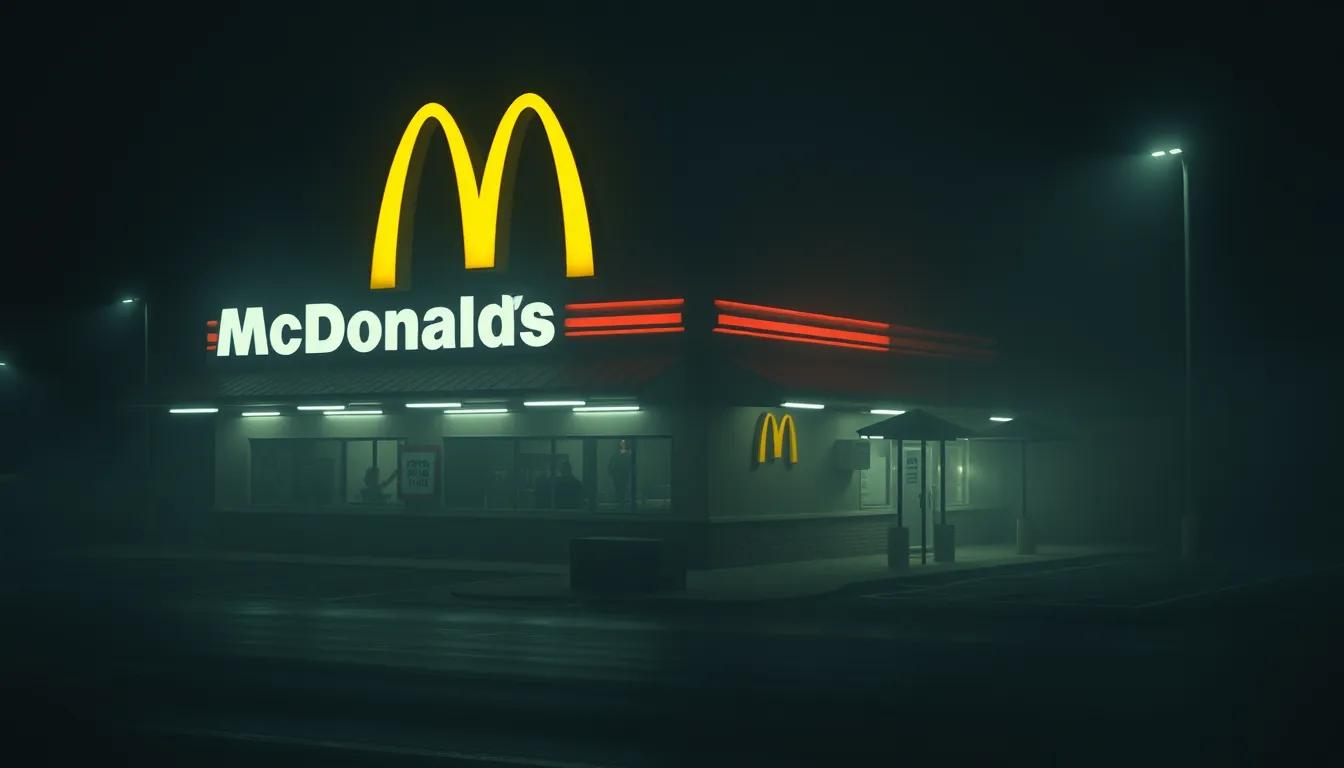
The text to image Flux Schnell node uses flux pro ultra technology to generate images from text. It is relatively fast, but less powerful.
**Inputs**
The prompt that describes the image to be generated.
**Settings**
The aspect ratio of the output image
Add up to 3 colors using the color palette to select.
A random number that will set the seed for the generation. Keeping the seed constant will result in the same outputs. -1 randomizes the seed.
**Outputs**
The variation output image