> ## Documentation Index
> Fetch the complete documentation index at: https://docs.rubbrband.com/llms.txt
> Use this file to discover all available pages before exploring further.
# New file
> Description of your new file.
## Mask Input Node
Mask input nodes enable users to incorporate image masks into their workflows. An image mask is a black-and-white representation that identifies selected (white) and unselected (black) regions of a base image. These nodes are generated from a base image, where the selected areas are shaded white, and the unselected areas remain black.
In order to add the mask for a mask input node, click the node and upload the base image that you want to mask. Then, use the brush tool to shade the desired areas, and hit save after you're done. You can change the size of the brush tool if desired, which might help you mask more quickly. After you hit save, your mask is added as the input for the node.
## Blur Mask Node
The blur mask node blurs a mask using a Gaussian blur.
**Inputs**
The mask that will be blurred.
**Settings**
The amount of blurring of the image. The default is 1.0. The recommended range is between 0.1-50.
**Outputs**
The output mask after blurring.
## Mask Image Channel Node
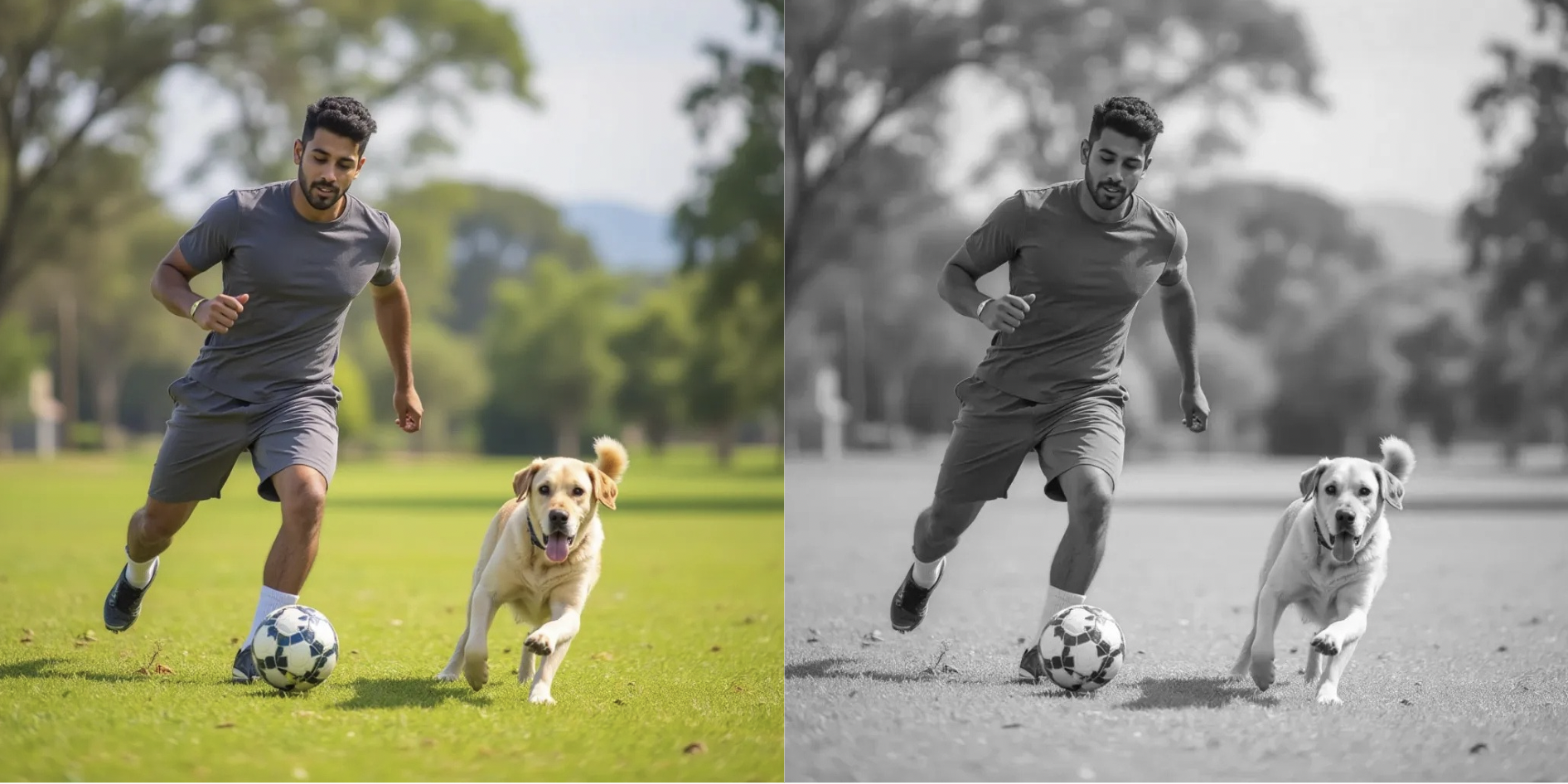
Takes out one particular image channel of the input image, and changes that image channel into a grayscale image.
**Inputs**
The image for which a particular channel will be extracted.
**Settings**
Red, blue, or green. The color channel that will be extracted.
**Outputs**
The grayscale image, represented with a Mask type, that represents the color channel. If a particular pixel of the specified channel has a value of 255, that pixel in the mask image will have 255.
## Invert Mask Node
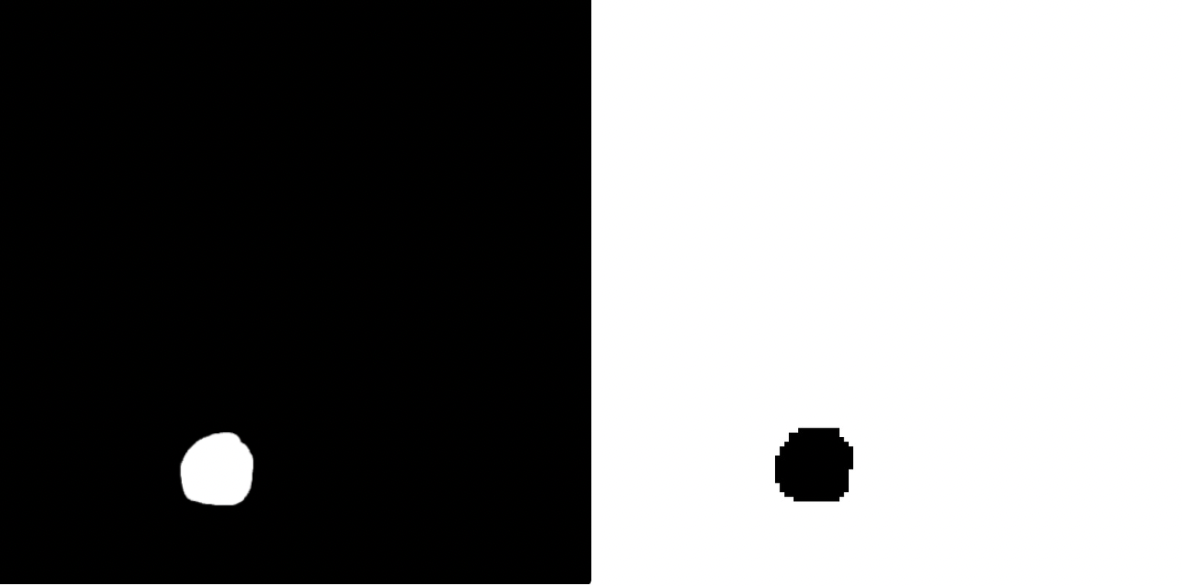
Takes in a mask image, and inverts it. The black pixels will become white, and the white pixels will become dark. If a grayscale mask is passed in, each pixel of the image will invert (255 - current value)
**Inputs**
The mask to be inverted
**Outputs**
The inverted mask.
## Unmasked Image Contents Node
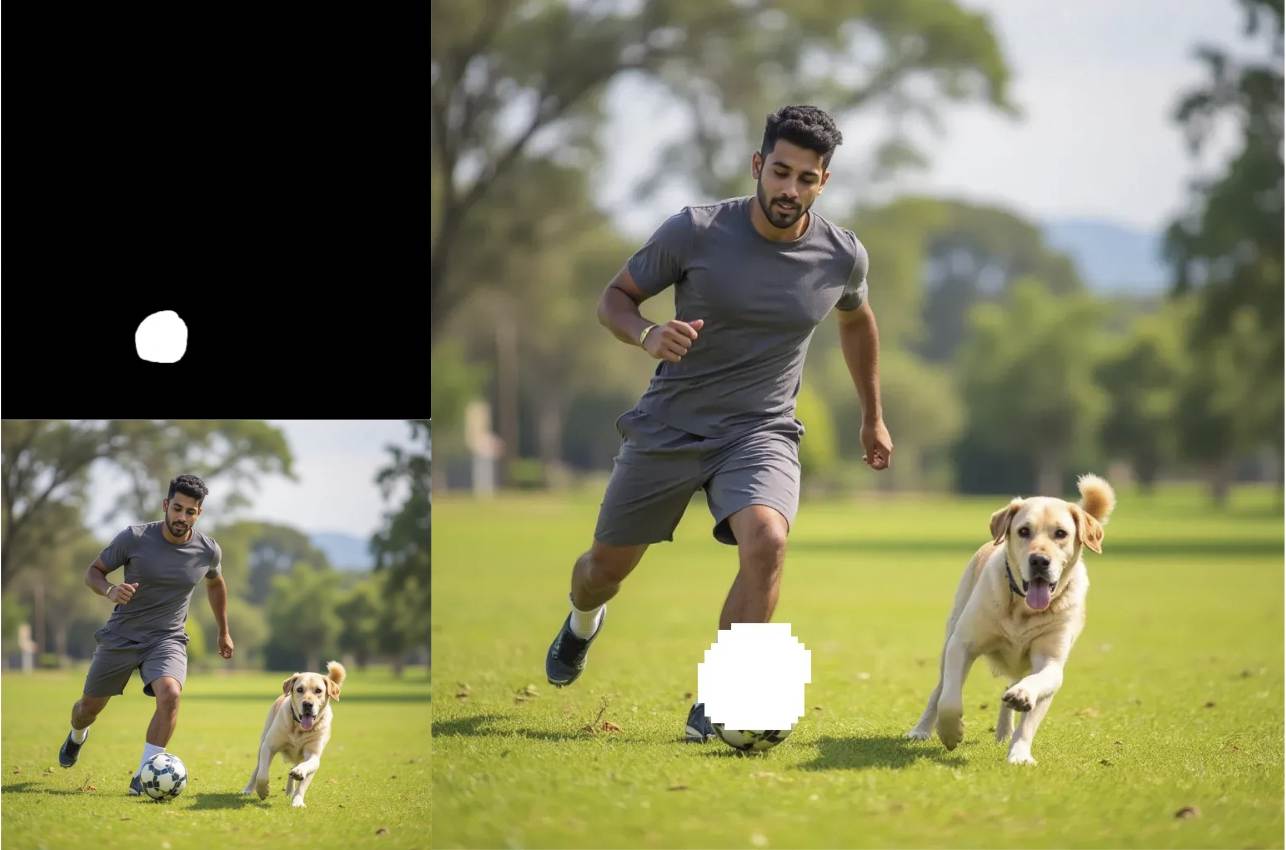
Outputs the section of the image that has not been masked.
**Inputs**
The base image that has an associated mask.
The mask where white areas are the sections of the initial image that will be removed
##
**Settings**
Red, blue, or green. The color channel that will be extracted.
**Outputs**
The grayscale image, represented with a Mask type, that represents the color channel. If a particular pixel of the specified channel has a value of 255, that pixel in the mask image will have 255.
## Segment Object Node
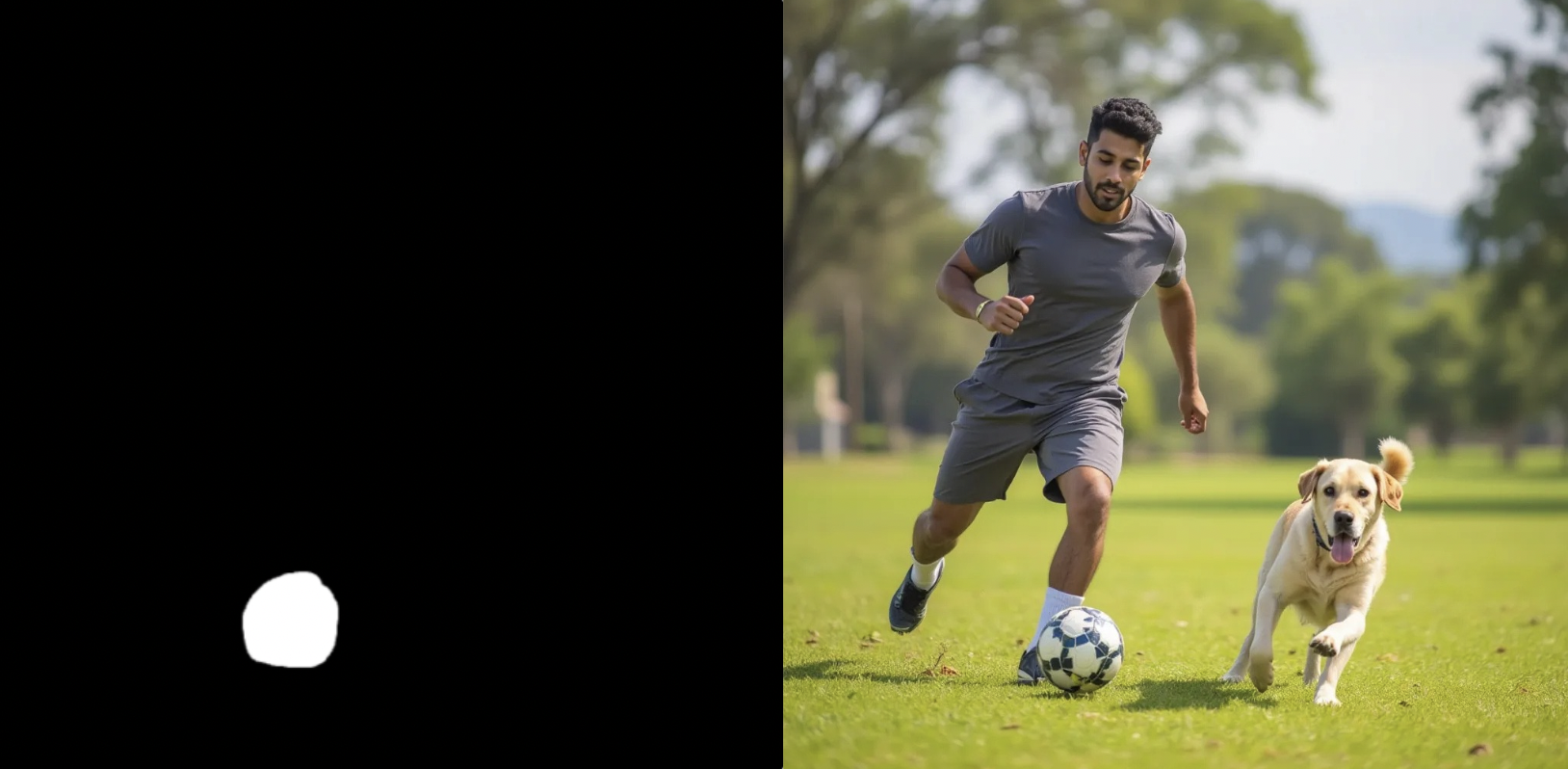
Uses the SAM-2 model to identify and mask out a particular object in an image.
**Inputs**
The base image that contains the object of interest.
**Settings**
The prompt that describes the object of interest. Example: "hat"
If turned on, the masks will be boxes that contain the object.
**Outputs**
The black and white mask, where white areas represent the areas that contain the object of interest.
##