> ## Documentation Index
> Fetch the complete documentation index at: https://docs.rubbrband.com/llms.txt
> Use this file to discover all available pages before exploring further.
# Image to Video Node
> Learn about the various image to video nodes in Rubbrband
**Hailuo Minimax Image to Video Node**
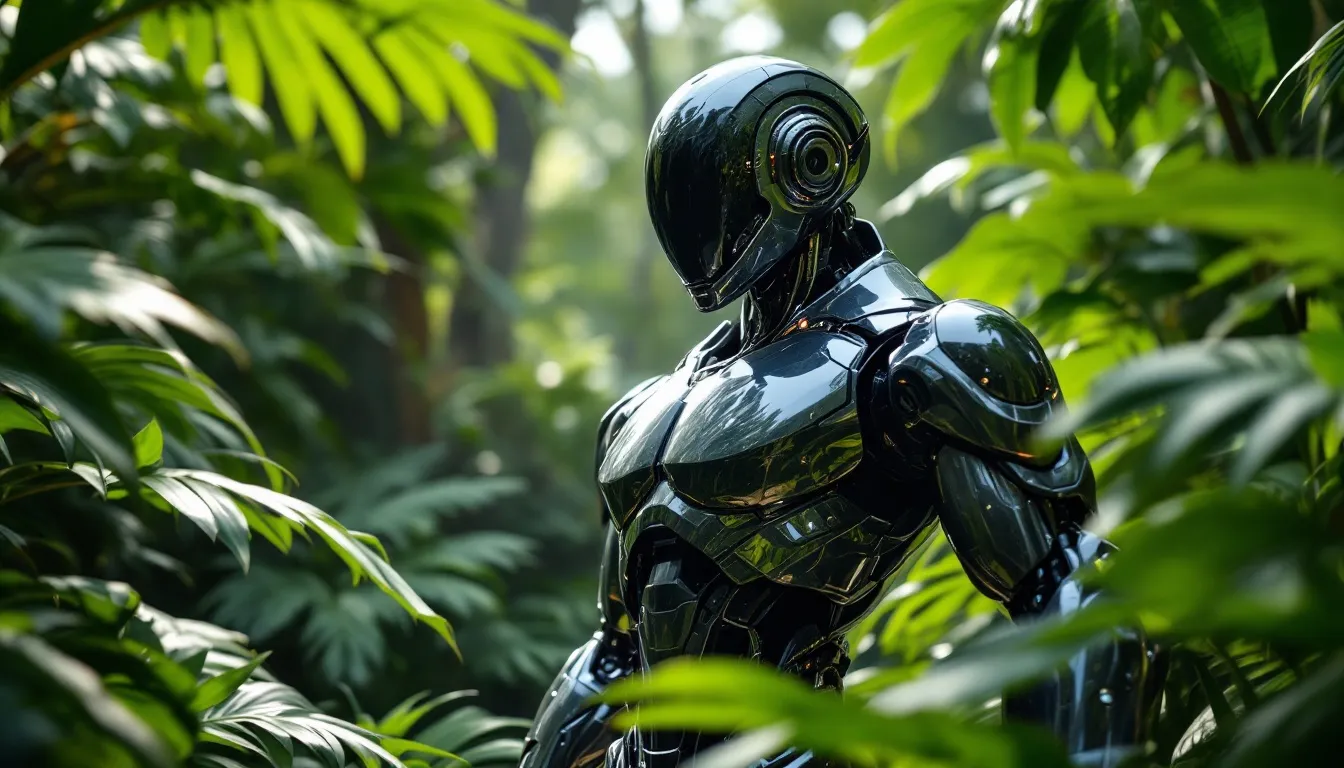
The Hailuo Minimax Image to Video Node takes a start frame and converts it to a video using Hailuo's Minimax model ([www.hailuoai.video](http://www.hailuoai.video)).
 **Inputs**
The prompt that describes the video to be generated. Keep the start frame in
mind, because regardless of the prompt, the start frame will be the image that
you pass in.
The start frame that will be the first frame of the output video
**Settings**
The output video aspect ratio.
The colors that you want in the output video
The haiper model does not necessarily support all aspect ratios. Specifically,
it supports only outputs of 16:9. Therefore, if this boolean is set, Rubbrband
will center-crop the video to fit your aspect ratio. If not set, there will be
no crop, and the output will be the closest supported output.
Duration of the output video
The output video aspect ratio.
A random number that will set the seed for the generation. Keeping the seed
constant will result in the same outputs. -1 randomizes the seed.
**Outputs**
The output video from the model.
**Haiper Image to Video Node**
The Haiper Image to Video Node takes a start frame and converts it to a video using Haiper 2.5 model (haiper.ai).
**Inputs**
The prompt that describes the video to be generated. Keep the start frame in
mind, because regardless of the prompt, the start frame will be the image that
you pass in.
The start frame that will be the first frame of the output video
**Settings**
The output video aspect ratio.
The colors that you want in the output video
The haiper model does not necessarily support all aspect ratios. Specifically,
it supports only outputs of 16:9, 9:16, 3:4, 4:3, 1:1. Therefore, if this
boolean is set, Rubbrband will center-crop the video to fit your aspect ratio.
If not set, there will be no crop, and the output will be the closest
supported output.
Duration of the output video
720p or 1020p resolution options
The output video aspect ratio.
A random number that will set the seed for the generation. Keeping the seed
constant will result in the same outputs. -1 randomizes the seed.
**Outputs**
The output video from the model.
**Kling Image to Video Node**
The Kling Image to Video Node takes a start frame and converts it to a video using Kling models (klingai.com).
**Inputs**
The prompt that describes the video to be generated. Keep the start frame in
mind, because regardless of the prompt, the start frame will be the image that
you pass in.
The start frame that will be the first frame of the output video
**Settings**
The output video aspect ratio.
The colors that you want in the output video
The Kling model does not necessarily support all aspect ratios. Specifically,
it supports only outputs of 16:9, 9:16 and 1:1. Therefore, if this boolean is
set, Rubbrband will center-crop the video to fit your aspect ratio. If not
set, there will be no crop, and the output will be the closest supported
output.
Duration of the output video
kling\_1.5\_pro: The latest Kling pro model kling\_1.0\_pro: The previous edition
Kling pro model kling\_1.0\_standard: The cheaper, previous edition standard
Kling model
A random number that will set the seed for the generation. Keeping the seed
constant will result in the same outputs. -1 randomizes the seed.
**Outputs**
The output video from the model.
**Luma Image to Video Node**
The LUMA Image to Video Node takes a start frame and converts it to a video using luma (lumalabs.ai).
**Inputs**
The prompt that describes the video to be generated. Keep the start frame in
mind, because regardless of the prompt, the start frame will be the image that
you pass in.
The start frame that will be the first frame of the output video
**Settings**
The output video aspect ratio.
This motion explains how a theoretical camera would move if it were used to
create the video.
The colors that you want in the output video
The luma model does not necessarily support all aspect ratios. Specifically,
it supports only outputs of 16:9, 9:16, 4:3, 3:4, 21:9, 9:21. Therefore, if
this boolean is set, Rubbrband will center-crop the video to fit your aspect
ratio. If not set, there will be no crop, and the output will be the closest
supported output.
Duration of the output video
If switched on, the video will automatically loop back to the start frame.
A random number that will set the seed for the generation. Keeping the seed
constant will result in the same outputs. -1 randomizes the seed.
**Outputs**
The output video from the model.
**Runway Image to Video Node**
The Runway Image to Video Node takes a start frame and converts it to a video using RunwayML (runwayml.com).
**Inputs**
The prompt that describes the video to be generated. Keep the start frame in
mind, because regardless of the prompt, the start frame will be the image that
you pass in.
The start frame that will be the first frame of the output video
**Settings**
The output video aspect ratio.
The colors that you want in the output video
The runwayml model does not necessarily support all aspect ratios.
Specifically, it supports only outputs of 768x1280 or 1280x768. Therefore, if
this boolean is set, Rubbrband will center-crop the video to fit your aspect
ratio. If not set, there will be no crop, and the output will be the closest
supported output.
Duration of the output video
Currently, the only model supported is gen3a\_turbo.
A random number that will set the seed for the generation. Keeping the seed
constant will result in the same outputs. -1 randomizes the seed.
**Outputs**
The output video from the model.
**Inputs**
The prompt that describes the video to be generated. Keep the start frame in
mind, because regardless of the prompt, the start frame will be the image that
you pass in.
The start frame that will be the first frame of the output video
**Settings**
The output video aspect ratio.
The colors that you want in the output video
The haiper model does not necessarily support all aspect ratios. Specifically,
it supports only outputs of 16:9. Therefore, if this boolean is set, Rubbrband
will center-crop the video to fit your aspect ratio. If not set, there will be
no crop, and the output will be the closest supported output.
Duration of the output video
The output video aspect ratio.
A random number that will set the seed for the generation. Keeping the seed
constant will result in the same outputs. -1 randomizes the seed.
**Outputs**
The output video from the model.
**Haiper Image to Video Node**
The Haiper Image to Video Node takes a start frame and converts it to a video using Haiper 2.5 model (haiper.ai).
**Inputs**
The prompt that describes the video to be generated. Keep the start frame in
mind, because regardless of the prompt, the start frame will be the image that
you pass in.
The start frame that will be the first frame of the output video
**Settings**
The output video aspect ratio.
The colors that you want in the output video
The haiper model does not necessarily support all aspect ratios. Specifically,
it supports only outputs of 16:9, 9:16, 3:4, 4:3, 1:1. Therefore, if this
boolean is set, Rubbrband will center-crop the video to fit your aspect ratio.
If not set, there will be no crop, and the output will be the closest
supported output.
Duration of the output video
720p or 1020p resolution options
The output video aspect ratio.
A random number that will set the seed for the generation. Keeping the seed
constant will result in the same outputs. -1 randomizes the seed.
**Outputs**
The output video from the model.
**Kling Image to Video Node**
The Kling Image to Video Node takes a start frame and converts it to a video using Kling models (klingai.com).
**Inputs**
The prompt that describes the video to be generated. Keep the start frame in
mind, because regardless of the prompt, the start frame will be the image that
you pass in.
The start frame that will be the first frame of the output video
**Settings**
The output video aspect ratio.
The colors that you want in the output video
The Kling model does not necessarily support all aspect ratios. Specifically,
it supports only outputs of 16:9, 9:16 and 1:1. Therefore, if this boolean is
set, Rubbrband will center-crop the video to fit your aspect ratio. If not
set, there will be no crop, and the output will be the closest supported
output.
Duration of the output video
kling\_1.5\_pro: The latest Kling pro model kling\_1.0\_pro: The previous edition
Kling pro model kling\_1.0\_standard: The cheaper, previous edition standard
Kling model
A random number that will set the seed for the generation. Keeping the seed
constant will result in the same outputs. -1 randomizes the seed.
**Outputs**
The output video from the model.
**Luma Image to Video Node**
The LUMA Image to Video Node takes a start frame and converts it to a video using luma (lumalabs.ai).
**Inputs**
The prompt that describes the video to be generated. Keep the start frame in
mind, because regardless of the prompt, the start frame will be the image that
you pass in.
The start frame that will be the first frame of the output video
**Settings**
The output video aspect ratio.
This motion explains how a theoretical camera would move if it were used to
create the video.
The colors that you want in the output video
The luma model does not necessarily support all aspect ratios. Specifically,
it supports only outputs of 16:9, 9:16, 4:3, 3:4, 21:9, 9:21. Therefore, if
this boolean is set, Rubbrband will center-crop the video to fit your aspect
ratio. If not set, there will be no crop, and the output will be the closest
supported output.
Duration of the output video
If switched on, the video will automatically loop back to the start frame.
A random number that will set the seed for the generation. Keeping the seed
constant will result in the same outputs. -1 randomizes the seed.
**Outputs**
The output video from the model.
**Runway Image to Video Node**
The Runway Image to Video Node takes a start frame and converts it to a video using RunwayML (runwayml.com).
**Inputs**
The prompt that describes the video to be generated. Keep the start frame in
mind, because regardless of the prompt, the start frame will be the image that
you pass in.
The start frame that will be the first frame of the output video
**Settings**
The output video aspect ratio.
The colors that you want in the output video
The runwayml model does not necessarily support all aspect ratios.
Specifically, it supports only outputs of 768x1280 or 1280x768. Therefore, if
this boolean is set, Rubbrband will center-crop the video to fit your aspect
ratio. If not set, there will be no crop, and the output will be the closest
supported output.
Duration of the output video
Currently, the only model supported is gen3a\_turbo.
A random number that will set the seed for the generation. Keeping the seed
constant will result in the same outputs. -1 randomizes the seed.
**Outputs**
The output video from the model.